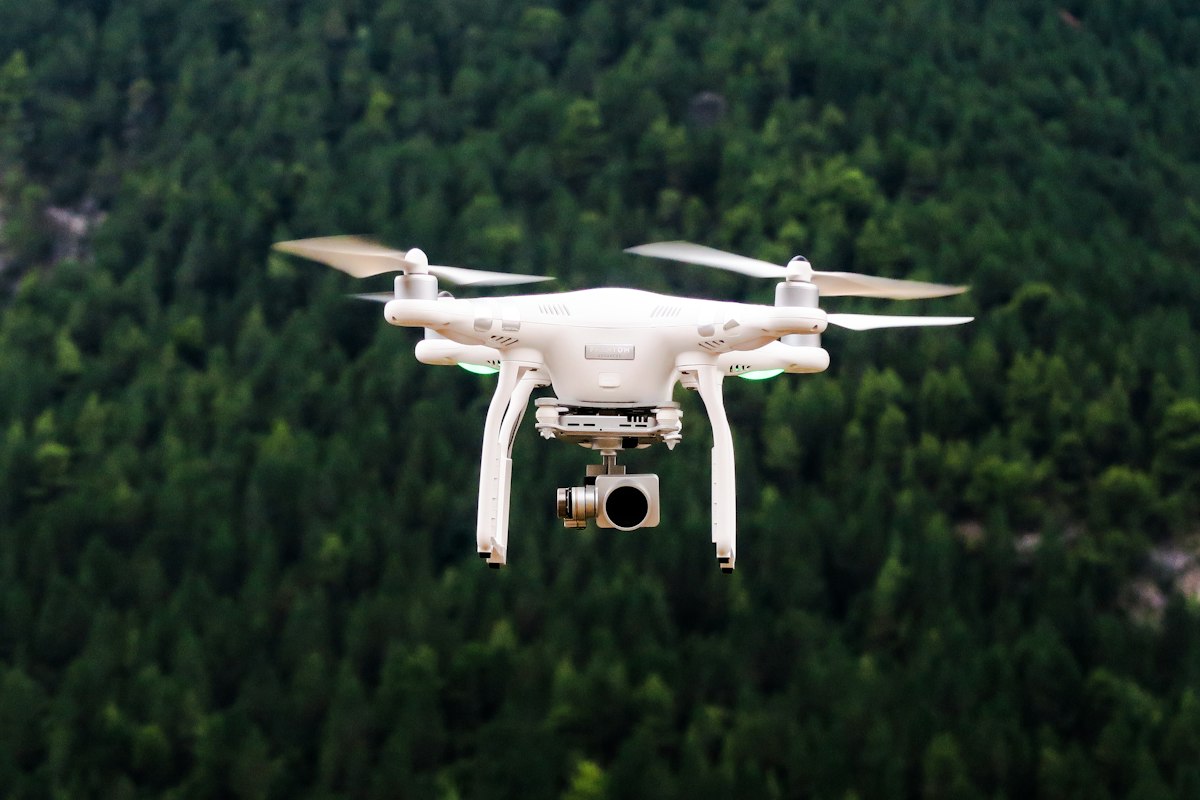
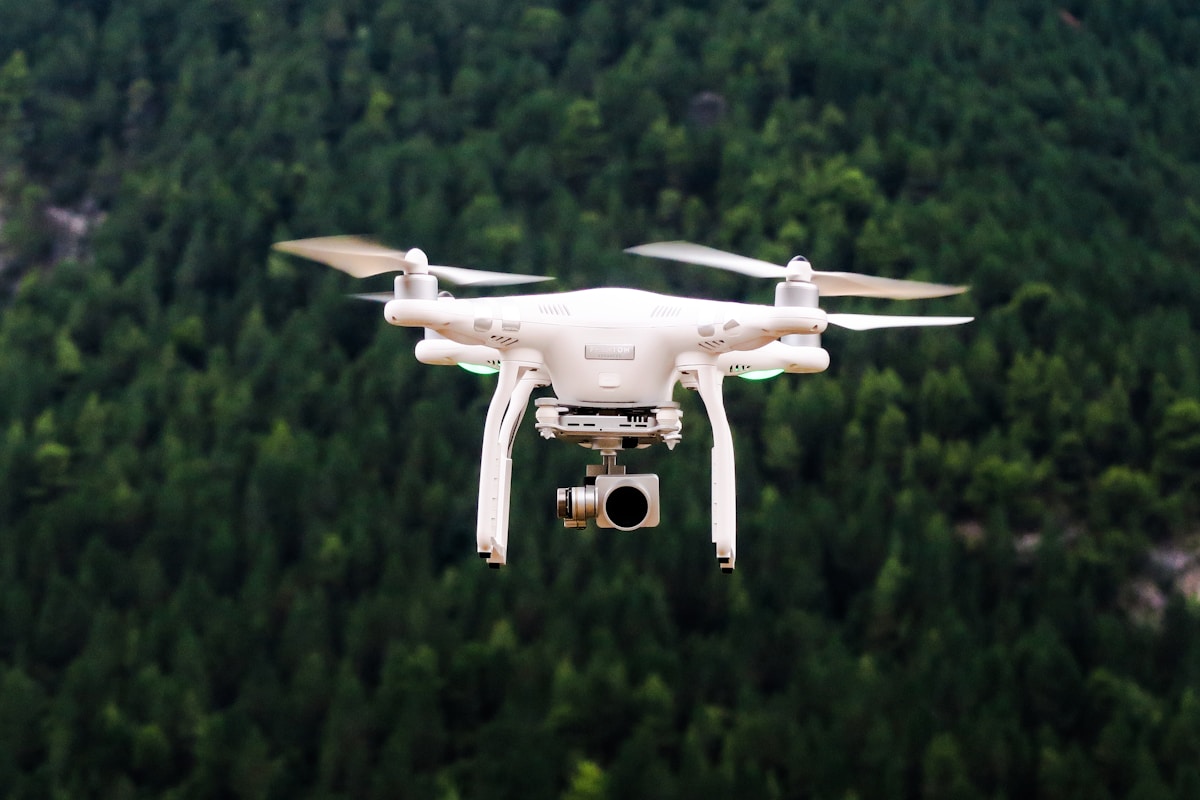
How to Get Smooth Drone Video: Gimbal Settings and ND Filters Explained
- Primary Signal: How to Get Smooth Drone Video: Gimbal Settings and ND Filters Explained
- Overview: How to get smooth drone video: gimbal settings, ND filters, shutter speed and the techniques that make footage cinematic....
- Verification: Analyzed and compiled by FreeSky Aerial editorial monitoring desk.
Smooth drone video looks effortless, but it is the result of settings and technique, not luck. A gimbal that is tuned properly, a shutter speed that matches the frame rate, and a slow, deliberate flying style are the three ingredients, and all three are learnable in an afternoon. This guide explains the settings and the techniques that make footage cinematic.
The 180-Degree Shutter Rule
The most important setting in drone video is shutter speed: set it to twice your frame rate, so 1/60th of a second for 30fps video. This creates the natural motion blur that makes footage look cinematic instead of jittery. In bright daylight, the shutter speed will be far too fast without help, which is where ND filters come in: they reduce the light entering the lens so you can keep the shutter slow. Without ND filters, your footage will look sharp but harsh.
ND Filters: Which One to Use
ND filters are rated by how much light they block: ND4, ND8, ND16 and ND32 are the common strengths, with higher numbers for brighter conditions. On a sunny day, ND16 or ND32 is usually right; on a cloudy day, ND4 or ND8 is enough. The test is the shutter speed: if it is twice your frame rate, the filter is correct. Carry a set of three filters and change them as the light changes, because one filter cannot cover a whole day.
Gimbal Settings and Calibration
Calibrate your gimbal before every shoot, and set the gimbal speed to slow: a slow gimbal smooths your movements and prevents the jerky tilts that ruin footage. Use the gimbal's follow mode for most shots, and switch to FPV mode only for dramatic dives. Keep the drone's movement slow and steady: fly at half the speed you think you need, and let the gimbal do the work. Smooth footage comes from slow inputs, not from fast flying.
Flying Techniques for Smooth Video
The smoothest shots are the simplest: a slow rise, a gentle orbit, or a straight tracking shot. Avoid combining movements, such as rising while turning while tilting, because the result is busy and hard to watch. Plan each shot before takeoff: decide the start, the end, and the speed, then fly it once, slowly. If a shot does not work, fly it again rather than fixing it in editing: a second take is cheaper than a ruined clip.
Editing for Smoothness
In editing, stabilise only if you must, because software stabilisation crops the frame and can look unnatural. Cut on movement, keep clips short, and let the footage breathe: a five-second shot that works beats a twenty-second shot that wanders. Colour grade gently, matching the look across your clips, and add music that matches the pace of the footage. The edit should be invisible; the footage should carry the video.
Colour Grading Drone Footage
Smooth video is only half the job: colour grading is the other half, and it turns flat, grey footage into the cinematic look that wins views. Shoot in D-Log or a flat profile, then grade in DaVinci Resolve or your editor of choice, starting with exposure, then contrast, then saturation. The grading should be subtle, because over-graded footage looks worse than ungraded. Learn one grading workflow and use it consistently, so your videos have a recognisable look. The footage is the raw material, and the grade is the craft.
Key Takeaways
- Set shutter speed to twice your frame rate for natural motion blur - ND filters let you keep the shutter slow in bright light - Set the gimbal to slow and fly at half the speed you think you need - Plan each shot before takeoff and fly it once, slowly
Frequently Asked Questions
What ND filter should I use for drone video? Use ND16 or ND32 on sunny days and ND4 or ND8 on cloudy days. The test is the shutter speed: if it is twice your frame rate, the filter is right.
Smooth video is a setting, a filter, and a slow hand. Set the shutter, fit the ND filter, and fly half as fast as you want to.
More from FreeSky Aerial